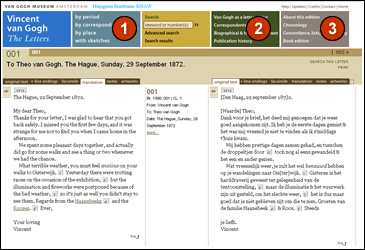
All the letters written and received by Vincent van Gogh are presented in this web edition: 902 letters and 25 'Related Manuscripts' (such as loose sheets and unsent drafts of letters). They can also be accessed by period, correspondent and place, or by selecting those containing sketches  . The site can be searched using its simple or advanced search functions.
The website also contains essays by the editors about Van Gogh and his letters, detailing their content and context, the artist's writing style and relation to his correspondents, as well as biographical information about him and his family and the publication history of the letters  .
.
The working method is explained in 'About this edition'  . The extensive chronology and the section entitled 'Documentation' (under 'Concordance, lists, bibliography' ) set the letters within a broader context. 'Documentation' also contains excerpts from letters by members of the Van Gogh family and others, as well as important documents that clarify aspects of Van Gogh's correspondence.
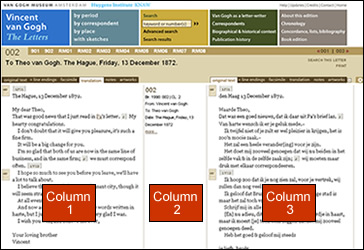
The letter screen consists of three columns. The first and third columns present different views of the letters. You can choose which content you wish to see in these columns. For example, you can use them to view the original and translated texts side by side, or the notes, or whatever suits you. The second column contains further information about the letter.
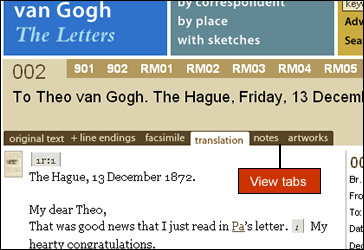
You can use the view tabs to select the content you wish to see in the first and third columns.
Original text. Displays the original text.
+line endings. Displays the original text with the original line endings. The lines are also numbered.
Facsimile. The facsimile view shows images of the letter. Clicking on a facsimile activates a zoom tool with which you can zoom in on details on the page. For more detailed
information about the facsimile itself, click on ‘physical description’ beneath the facsimile.
Translation. Here you find the English translation of the letter.
Notes. Displays the editorial annotations to the text. Individual notes can also be accessed by clicking the note number in the text or translation. If a note refers to a person, work
of art, book or biblical passage, the reference is provided with a hyperlink. Clicking the hyperlink executes a search for that person, etc. In the case of a reference to an illustrated work of art,
clicking the small sunflower icon (![[2380]](/vg/interface/artworkref.png) ) displays the illustration.
) displays the illustration.
Artworks.. Displays thumbnails of all illustrated works of art mentioned in the annotations. Clicking the image will show a larger view of the work.
Recall previous letters
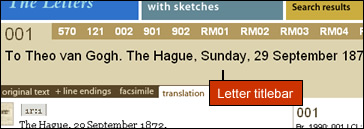
The numbers of recently viewed letters are shown next to the present letter number in the Letter title bar. Clicking a number returns you to that letter.
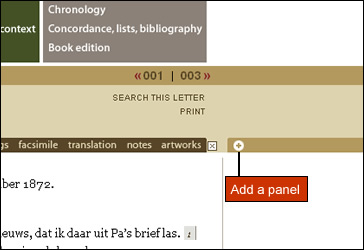
Add a panel
If your screen resolution is high enough you can add more panels by clicking the plus button.